

Menu Cart & Shortcode
Put a cart icon in your site's navigation menu, or anywhere else with a shortcode.
ShapedCart's Menu Cart is a cart icon for your header menu, with a badge showing how many items are in the cart and, if you like, the cart total. Clicking it opens the side cart. It's off by default.
You'll find its settings at ShapedCart → Side Cart → 2 Triggers → Menu Cart. The card has an on/off switch in its top-right corner, and General and Style tabs.
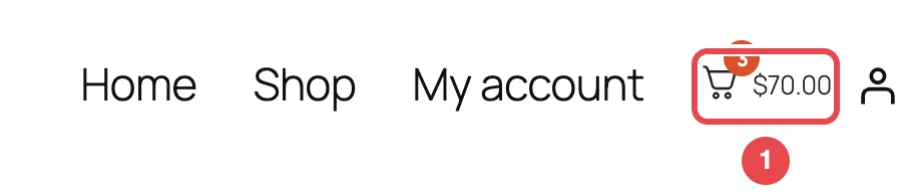
There are two ways to show the menu cart. You can use either or both:
| Method | How | Best for |
|---|---|---|
| Add to Menu | Pick one of your WordPress menus, and ShapedCart adds the cart icon as its last item. | Classic themes (Astra, Storefront, GeneratePress, Kadence and similar), where the header shows a menu from Appearance → Menus |
| Shortcode | Paste [shaped_cart_menu] wherever you want the icon to appear. | Block themes, page builders, widgets, or anywhere that isn't a menu |
Turn it on
- Go to ShapedCart → Side Cart and click 2 Triggers.
- Switch on the Menu Cart card, using the switch in its top-right corner.
- Choose where it appears: pick a menu under Add to Menu, or copy the shortcode.
- Click Save changes.
The switch controls the shortcode too
The [shaped_cart_menu] shortcode only shows the icon while the Menu Cart card is switched on. If you paste the shortcode and nothing appears, check the switch first.
General settings
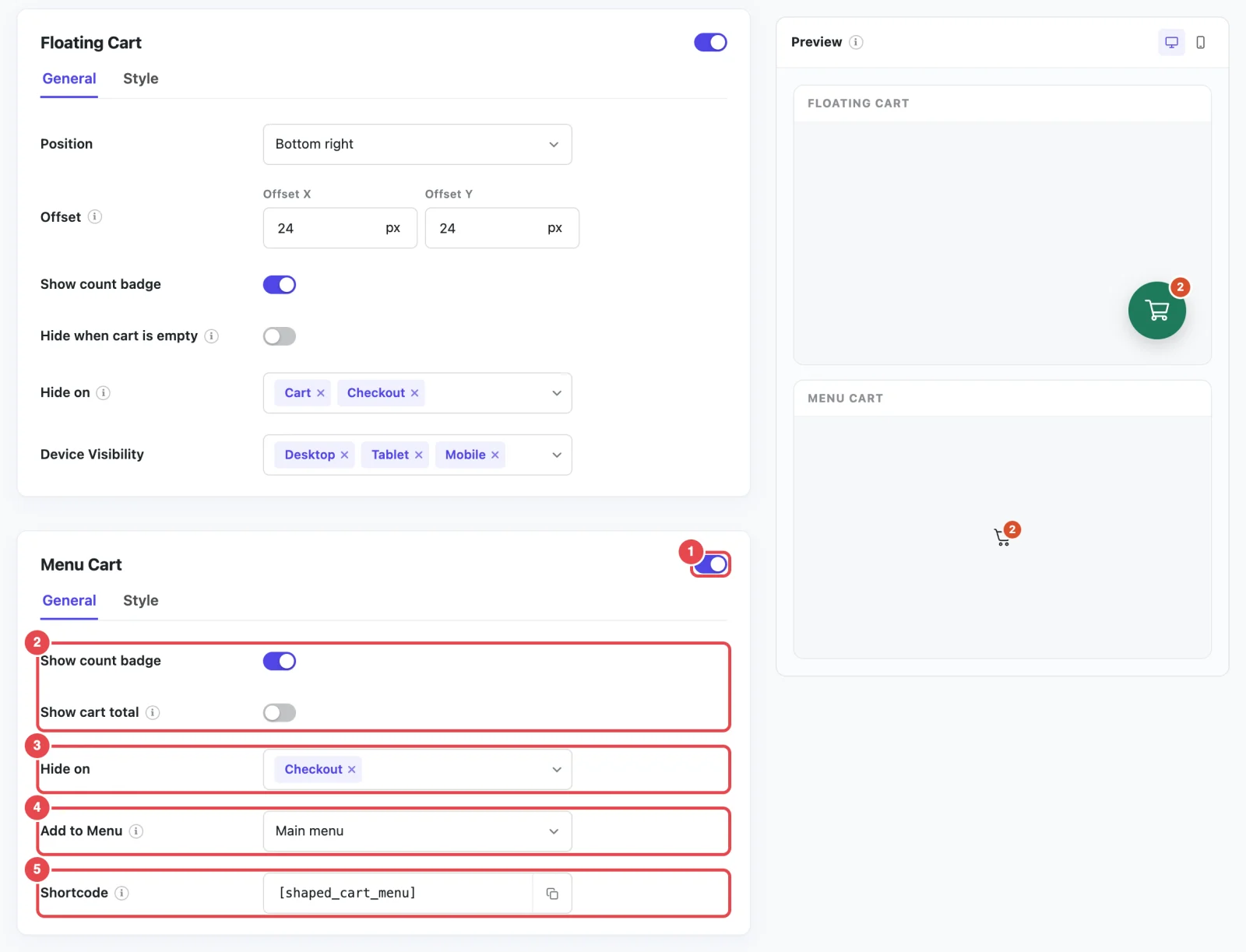
| Setting | What it does | Default |
|---|---|---|
| Show count badge | Shows the number of items in the cart on the icon | On |
| Show cart total | Shows the cart total next to the icon | Off |
| Hide on | Pages where the menu cart doesn't appear | Checkout |
| Add to Menu | The WordPress menu the icon is added to | None (Select a menu) |
| Shortcode | The shortcode for placing the icon anywhere else, with a copy button | [shaped_cart_menu] |
Count badge and total
ShapedCart's Show count badge setting puts a small badge on the corner of the icon with the number of items in the cart. It counts every unit, so two T-shirts and a hat show 3.
Show cart total adds the cart's subtotal next to the icon, such as $80.00. That's the price of the items before shipping and coupon discounts, the same figure as the Subtotal in the side cart.
Both update as soon as the shopper changes their cart, without reloading the page.
Hide on
ShapedCart's Hide on setting lists the kinds of page where the menu cart doesn't appear. The choices are Cart, Checkout, Thank you, My account and Blog. They work the same way as the floating cart's, and Floating Cart → Hide on explains exactly what each one covers.
By default the menu cart is hidden on Checkout, so shoppers aren't tempted to click away while they pay. Hide on applies to the shortcode as well.
Add to Menu
ShapedCart's Add to Menu setting adds the cart icon to the end of one of your WordPress menus, wherever your theme shows that menu. Pick the menu from the list. The icon is always added as the last item.
The list shows the menus you've created under Appearance → Menus. To add the icon to your header, pick the menu your theme uses there. If you're not sure which that is, go to Appearance → Menus → Manage Locations to see which menu is assigned to your header, or primary, location.
To remove the icon from the menu, set Add to Menu back to Select a menu.
The list is empty?
You don't have any classic WordPress menus yet. That's normal on block themes like Twenty Twenty-Five, which build their navigation with the Navigation block instead. Use the shortcode there. See Block themes below.
Shortcode
ShapedCart's [shaped_cart_menu] shortcode shows the menu cart icon wherever you paste it, with the same count badge, total and style as the menu version. A shortcode is a short code in square brackets that WordPress replaces with something when the page loads.
Click the copy button next to the shortcode in the Menu Cart card to copy it. You'll see Shortcode copied. Then paste it into:
- a Shortcode block, in the block editor or the Site Editor
- a page builder's shortcode widget or element, in Elementor, Divi, Beaver Builder, Bricks and similar
- a widget area that accepts shortcodes
- a theme header builder element that runs shortcodes
The shortcode has no options. Everything about it comes from the Menu Cart settings.
Upgraded from RenoCart?
The old [reno_menu_cart] shortcode still works, and always will, so you don't need to replace it on pages that already use it. Use [shaped_cart_menu] for anything new. See RenoCart is now ShapedCart.
Block themes
In a block theme, you add the ShapedCart menu cart to your header with the shortcode, because the header's Navigation block doesn't use classic WordPress menus. Add to Menu has no effect there.
- Copy
[shaped_cart_menu]from the Menu Cart card. - Go to Appearance → Editor and open your Header template part. You'll find it under Patterns.
- Click your Navigation block, then open its ⋮ options menu in the block toolbar and choose Add after.
- Add a Shortcode block in the new spot, paste the shortcode into it, and save.
The Shortcode block has to sit next to the Navigation block, not inside it, because the Navigation block only accepts links and a few other navigation blocks.
The icon now sits in your header beside the menu on every page that uses that header.
Style settings
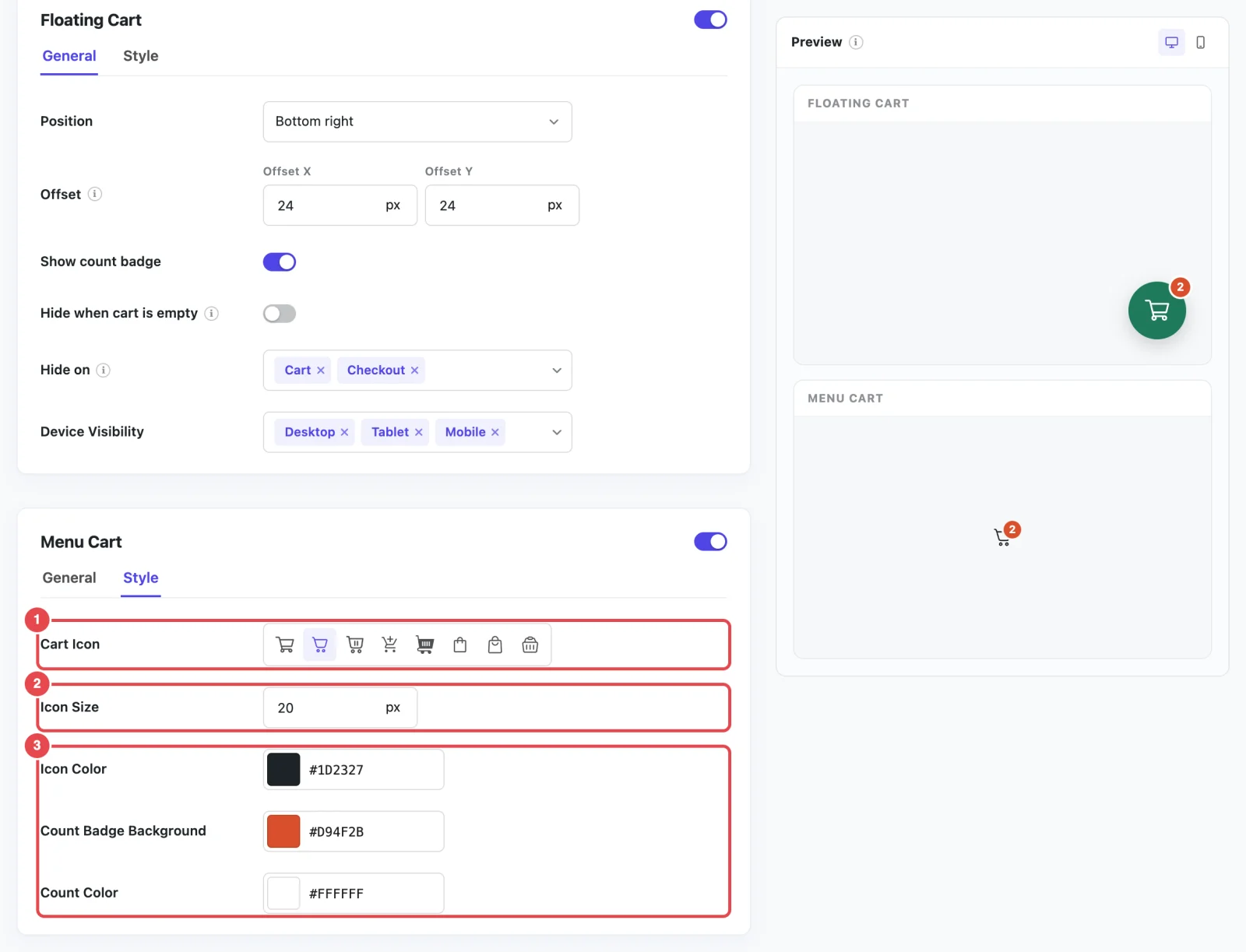
ShapedCart's Style tab on the Menu Cart card controls how the icon looks:
| Setting | What it does | Default |
|---|---|---|
| Cart Icon | The icon shown. There are eight to choose from, the same set as the side cart's icon. | Cart (fine line) |
| Icon Size | The icon's width and height | 20px |
| Icon Color | The icon's color, and the color of the cart total | #1d2327 (near black) |
| Count Badge Background | The count badge's color | #d94f2b (red-orange) |
| Count Color | The number inside the badge | #ffffff (white) |
Match your menu links
Set Icon Color to the same color as your header's menu links, and Icon Size close to their text size (18px–24px for most themes). The cart then looks like it belongs in your menu. On a dark header, switch the icon to white.
How it behaves on your store
- Clicking it opens the side cart. It's a link to your WooCommerce cart page underneath, so if JavaScript isn't available, shoppers go to the cart page instead.
- It updates live. The count and total change as soon as the cart does.
- Screen readers announce it as Open cart.
Related
- Floating Cart: a cart button pinned to the corner of the screen
- Cart Summary: the subtotal the menu cart's total shows
- Troubleshooting: the menu cart isn't showing