

Checkout Buttons
Set up the buttons at the bottom of the side cart: the checkout button, and optional Continue shopping and View cart buttons.
ShapedCart's Checkout Section settings control the buttons at the bottom of the WooCommerce side cart. You'll find them at ShapedCart → Side Cart → 1 Side cart → General → Checkout Section, the fifth section on the tab.
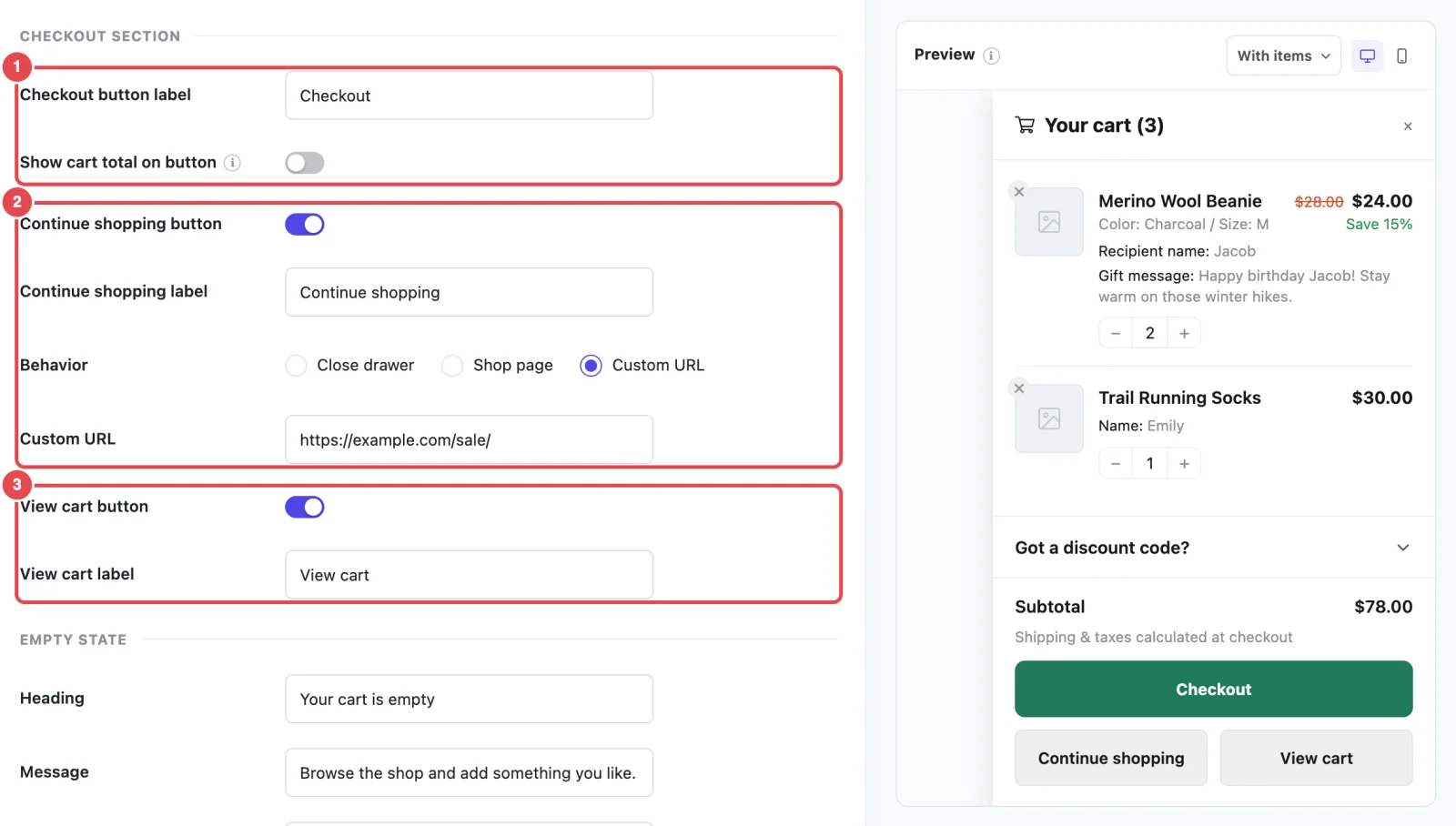
At a glance
| Setting | What it does | Default |
|---|---|---|
| Checkout button label | The text on the checkout button | Checkout |
| Show cart total on button | Adds the order total to the checkout button, like Checkout · $77.00 | Off |
| Continue shopping button | Adds a button that takes shoppers back to browsing | Off |
| Continue shopping label | That button's text. Appears when Continue shopping button is on. | Continue shopping |
| Behavior | What Continue shopping does: close the cart, go to the Shop page, or go to an address you choose. Appears when Continue shopping button is on. | Close drawer |
| Custom URL | Where Continue shopping goes. Appears when Behavior is Custom URL. | Empty |
| View cart button | Adds a button to your WooCommerce cart page | Off |
| View cart label | That button's text. Appears when View cart button is on. | View cart |
How the buttons are laid out
The ShapedCart checkout button always spans the full width of the cart, in your accent color, right under the totals. If you turn on Continue shopping or View cart, they sit on one row underneath it in a lighter style, sharing the width equally. If only one is on, it takes the whole row.
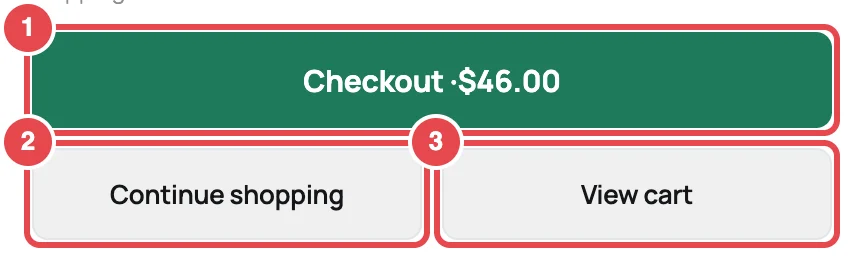
The checkout button's color comes from the Accent and Accent text colors, and all three buttons share the Corner radius. Both are on the Style tab. See Layout & Colors.
Checkout button
ShapedCart's checkout button takes shoppers straight to your WooCommerce checkout page. It's always shown when the cart has items. It's the main thing the cart is for, so it can't be switched off.
- Checkout button label changes its text. Try Checkout, Secure checkout or Proceed to checkout. Keep it short so it fits on one line on phones.
- Show cart total on button adds the order total after the label, like Checkout · $77.00. It's the same grand total WooCommerce shows at checkout, including any coupon discount, and it updates whenever the cart changes. It's a handy way to show the total without turning on the Total row.
Continue shopping button
ShapedCart's Continue shopping button gives shoppers an obvious way back to browsing once they've checked their cart. It's off by default. Turn it on, then pick a Behavior:
| Behavior | What happens when a shopper clicks it | Good for |
|---|---|---|
| Close drawer | The cart closes and the shopper is right back where they were on the page. | Most stores. It's the quickest way back. |
| Shop page | The shopper goes to your WooCommerce Shop page. | Stores where shoppers often add from a single product page and need a nudge back to the catalog. |
| Custom URL | The shopper goes to the address you type in Custom URL. | Sending shoppers to a sale, a new-arrivals page or a specific category. |
A few details:
- Shop page uses the page set as your Shop page in WooCommerce → Settings → Products. If you haven't set one, the button goes to your home page.
- Custom URL accepts a full web address, such as
https://example.com/sale/. If you pick Custom URL but leave the field empty, the button goes to your Shop page. - Continue shopping label changes the button's text, for example Keep shopping or Back to the store.
View cart button
ShapedCart's View cart button adds a button that opens your regular WooCommerce cart page. It's off by default.
Most shoppers won't need it, because they can do everything in the side cart. It's useful if your cart page has something the side cart doesn't, such as a shipping calculator, cross-sells, or a gift option added by another plugin.
Change View cart label to rename it, for example Full cart or Edit cart.
Related
- Cart Summary: the previous section
- Empty State: the next section
- Layout & Colors: button colors and corner radius