

Plugin Settings
Three plugin-wide controls: switch ShapedCart off without losing anything, decide what happens to your data when you uninstall, and start over.
ShapedCart's Settings tab holds the controls that affect the whole plugin rather than one part of the cart. Open it from the Settings tab in the ShapedCart header, at ShapedCart → Settings.
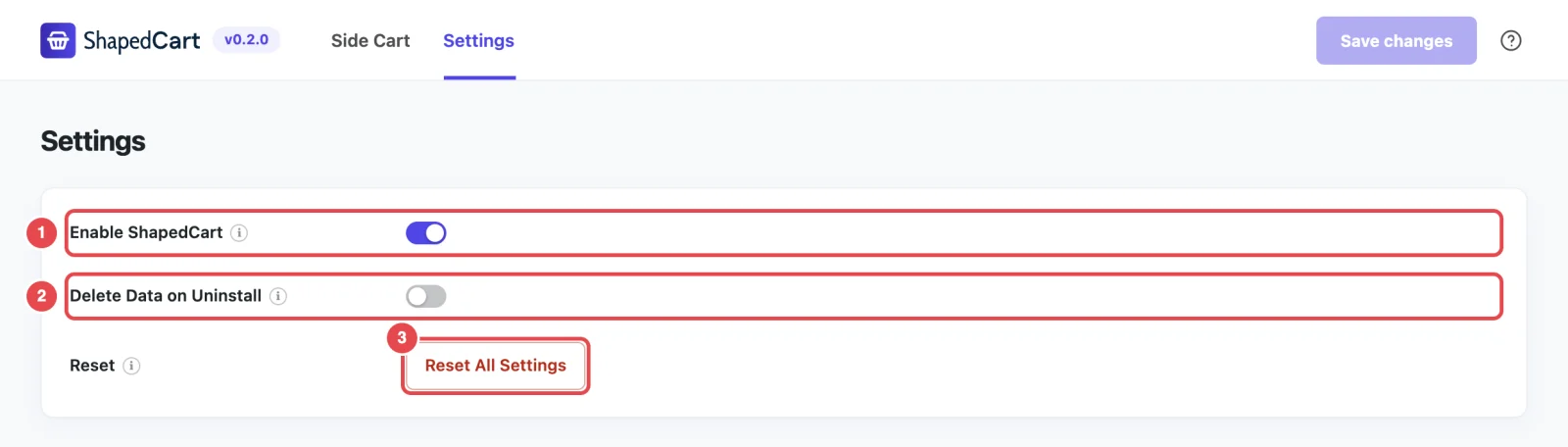
At a glance
| Setting | What it does | Default |
|---|---|---|
| Enable ShapedCart | Turns the side cart, floating cart and menu cart on or off across your store, and keeps your settings | On |
| Delete Data on Uninstall | Deletes ShapedCart's settings when you delete the plugin | Off |
| Reset All Settings | Puts every ShapedCart setting back to its default, straight away | — |
Enable ShapedCart and Delete Data on Uninstall only take effect once you click Save changes in the header. Reset All Settings works immediately.
Enable ShapedCart
ShapedCart's Enable ShapedCart switch turns the plugin off on your store without deactivating it. Your settings stay exactly as they are. As the help text puts it: "Turn this off and shoppers get your theme cart again; your settings are kept."
With it switched off:
- the side cart, floating cart and menu cart all disappear from your store
- the
[shaped_cart_menu]shortcode shows nothing, instead of printing the shortcode as text - ShapedCart doesn't load any of its files on your store's pages
- shoppers use WooCommerce's normal cart page, and your theme's own mini cart if it has one
- the ShapedCart settings screen still works, so you can keep changing settings and previewing them
Switch it back on and save, and everything returns just as you left it.
When to use it
It's handy for testing. If something on your store looks wrong, turn ShapedCart off, check the page, then turn it back on. That tells you quickly whether ShapedCart is involved. It's also useful if you want to prepare your cart settings before your shoppers see them.
Enable ShapedCart or deactivate the plugin?
Both stop ShapedCart on your store, and both keep your settings. The difference is the admin screen:
| Enable ShapedCart off | Plugin deactivated | |
|---|---|---|
| Side cart, floating cart and menu cart | Off | Off |
| Settings kept | Yes | Yes |
| ShapedCart settings screen and preview | Still available | Gone until you reactivate |
[shaped_cart_menu] in your pages | Shows nothing | Shows as plain text, [shaped_cart_menu] |
If you've placed the shortcode on your pages, use Enable ShapedCart rather than deactivating, so your visitors don't see the raw shortcode.
Delete Data on Uninstall
ShapedCart's Delete Data on Uninstall setting decides whether your ShapedCart settings are deleted from your database when you delete the plugin. It's off by default, so your settings are kept, and they're all still there if you install ShapedCart again later.
Turn it on, and click Save changes, if you're removing ShapedCart for good and want to leave nothing behind.
It only matters when you delete the plugin from Plugins → Installed Plugins. Deactivating never deletes anything. Uninstalling & Data lists exactly what ShapedCart stores and what gets removed.
Turn it on before you delete the plugin
WordPress reads this setting at the moment you delete ShapedCart. If you delete the plugin first, it's too late. The settings stay in your database.
Reset
ShapedCart's Reset All Settings button puts every ShapedCart setting back to how it was when you first installed the plugin. That includes everything on the Side Cart tab and both switches on this tab.
- Click Reset All Settings.
- Your browser asks: "Reset every ShapedCart setting to its default value? This cannot be undone." Click OK to go ahead, or Cancel to keep your settings.
- You'll see Settings reset to defaults. The reset is saved straight away. You don't need to click Save changes.
There's no undo
Reset replaces all your labels, colors and choices at once, including the menu picked in Add to Menu on the Menu Cart. If there's anything you want to keep, like a custom color or wording, note it down first.
After a reset, ShapedCart is back to its defaults: the side cart slides in from the right, the floating cart is on in the bottom-right corner, and the menu cart is off. Installation lists the main defaults, and each settings page lists the rest. Your store switches to them on the next page load.
Only want to undo one change?
If you haven't clicked Save changes yet, reload the settings screen to throw away everything you changed since your last save. Your browser will warn you first. To put back just one color, type its default hex code, listed on Layout & Colors.
Related
- Uninstalling & Data: what ShapedCart stores and how to remove it
- Admin Screen Tour: saving your changes
- Troubleshooting: check whether ShapedCart is the cause of a problem