

Introduction
ShapedCart gives your WooCommerce store a cart that opens right on the page, so shoppers never have to leave what they're looking at.
What ShapedCart does
By default, WooCommerce keeps the cart on its own page. A shopper adds something, and to check what's in their cart, change a quantity, or head to checkout, they have to go to that page and then find their way back to the shop.
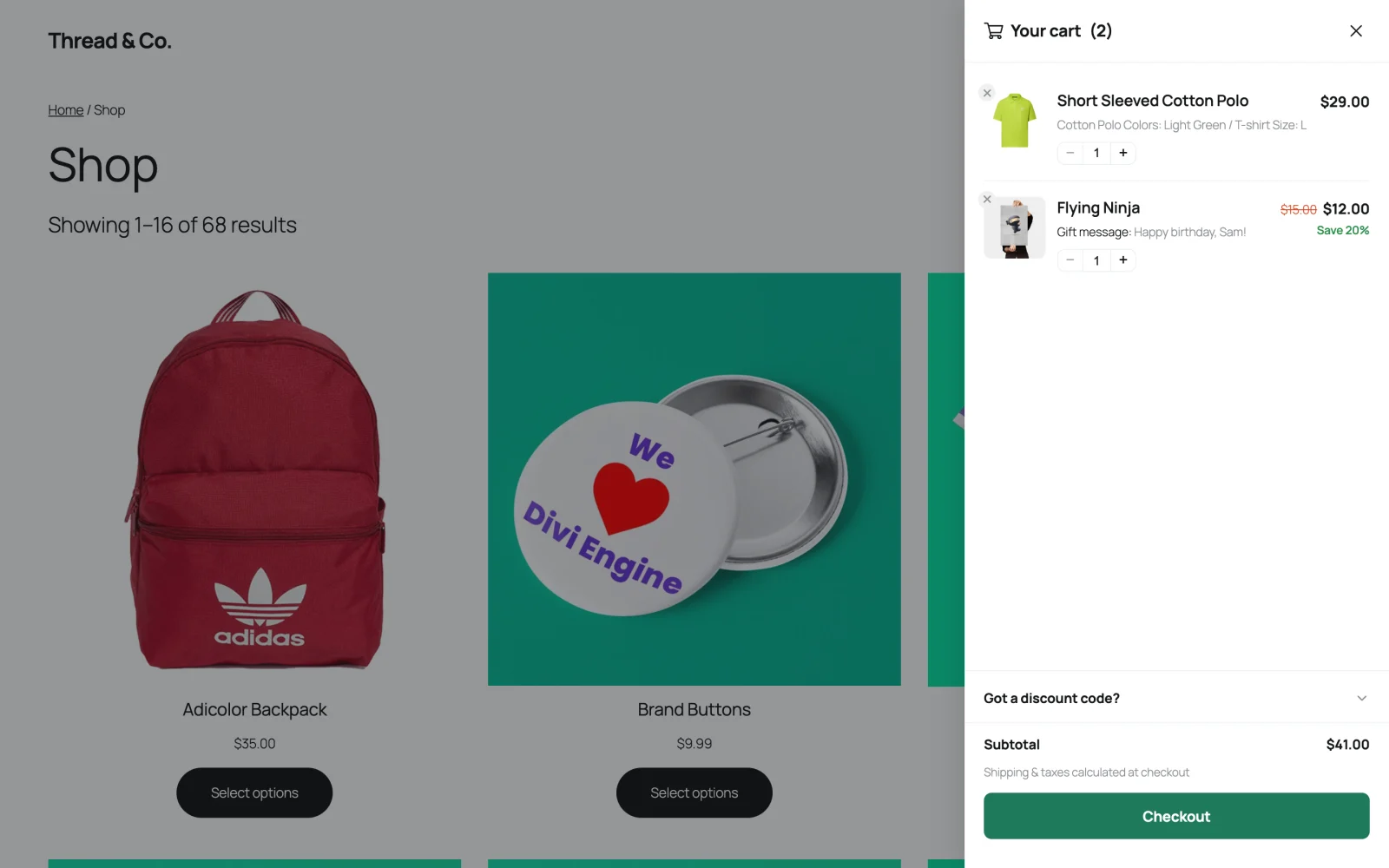
ShapedCart adds a side cart: a panel that slides in from the edge of the screen, on top of whatever page the shopper is on. We also call it the drawer, because it slides in and out like one. Other plugins call the same idea a mini cart, cart drawer, slide-out cart or off-canvas cart. Shoppers can review their items, change quantities, remove things, apply a coupon, and go to checkout from there. When they close it, they're right back where they were.
It works as soon as you activate it. You don't have to run a setup wizard, write any code, or add a block to a page. The defaults are sensible, and you can change them whenever you want.
What shoppers see
ShapedCart has four parts. The first one is the cart itself. The other three are triggers, which are ways for a shopper to open it.
| Part | What it is | On by default? |
|---|---|---|
| Side cart | The cart panel. It slides in from the right or left, or opens as a popup in the middle of the screen. | Yes, sliding in from the right |
| Auto-open | The cart opens by itself every time a shopper adds a product, so they know it worked. | Yes |
| Floating cart | A round cart button pinned to a corner of the screen, with a badge showing how many items are in the cart. | Yes, bottom right (hidden on the cart and checkout pages) |
| Menu cart | A cart icon in your site's navigation menu, with an optional item count and total. You can also place it anywhere with a shortcode. | No. Turn it on when you want it. |
Inside the cart, each product shows its image, its name, and a quantity stepper (the − and + buttons). Depending on your settings, it can also show:
- the options the shopper picked, such as Color: Black / Size: M
- the original price crossed out next to the sale price, with a "Save 20%" badge
- extra details added by product add-on plugins, like a gift message or an engraving
- an "Only 3 left" badge when stock runs low
Under the items you can show a coupon field, the subtotal, shipping, the total, and a short note. At the bottom there's the checkout button, plus optional Continue shopping and View cart buttons. If the cart is empty, shoppers see a friendly message and a button back to your shop instead of a blank panel.
Your cart page doesn't go away
ShapedCart doesn't delete or replace your WooCommerce cart page. It's still there for anyone who goes to it directly, and you can link to it with the View cart button. Most shoppers just won't need it anymore.
Why a side cart helps
Each trip from a product page to the cart page and back is another chance for a shopper to lose interest. A side cart removes that trip:
- Shoppers stay where they are. They check their cart and close it, and they're back on the same product, in the same spot on the page.
- They can see that the add worked. When the cart opens on add, there's no wondering whether the click did anything.
- The cart is always one tap away. The floating cart and menu cart keep it within reach on every page, including on phones.
- Checkout is closer. The checkout button is in the cart, so shoppers get there with one less page to load.
How it works
The ShapedCart side cart is already filled in when the page loads, so it doesn't flash empty or push your page layout around when it opens. Changing a quantity, removing an item, or applying a coupon updates the cart and its totals without reloading the page. Behind the scenes, ShapedCart talks to WooCommerce's own cart system (the Store API, the same one the WooCommerce Cart and Checkout blocks use), so the prices, discounts and totals are the same ones WooCommerce shows everywhere else.
It's also built to work well for people using a keyboard or a screen reader. Focus moves into the cart when it opens and goes back when it closes, the Esc key closes it, and screen readers announce the new item count whenever the cart changes. Accessibility has the details.
Everything is free
There's no Pro version of ShapedCart. Every feature in these docs, including the popup cart, floating cart, menu cart, coupon field, and all the styling controls, is in the free plugin. You don't need a license key, there are no locked settings, and it won't ask you to upgrade.
How these docs are organized
The sidebar follows the ShapedCart settings screen, so you can keep the docs open next to it and find each setting in the same place.
| Section | Read it when you want to… |
|---|---|
| Getting Started | Install ShapedCart, check that your site meets the requirements, and learn your way around the admin screen. |
| Side Cart | Change what's in the cart and how it looks: how it opens, what each item shows, the coupon field, totals, buttons, the empty state, and colors. |
| Triggers | Set up the floating cart and the menu cart. |
| Settings | Turn ShapedCart off without losing your settings, keep or delete data when you uninstall, or reset everything. |
| How It Works | Understand auto-open, compatibility with themes and plugins, accessibility, and translation. |
| Help | Get quick answers in the FAQ, fix problems with Troubleshooting, or read about the RenoCart to ShapedCart rename. |
| Developers | Customize the cart with custom CSS, or look up shortcodes, data attributes and stored data in the developer reference. |
Where to go next
- Requirements: check your site first
- Installation & Activation: get ShapedCart running
- Quick Start: make it yours in about five minutes