

Cart Summary
Choose which totals shoppers see at the bottom of the side cart, and what they're called.
ShapedCart's Cart Summary settings control the totals shown under the items in the WooCommerce side cart: the subtotal, shipping, the order total, and a short note. You'll find them at ShapedCart → Side Cart → 1 Side cart → General → Cart Summary, the fourth section on the tab.
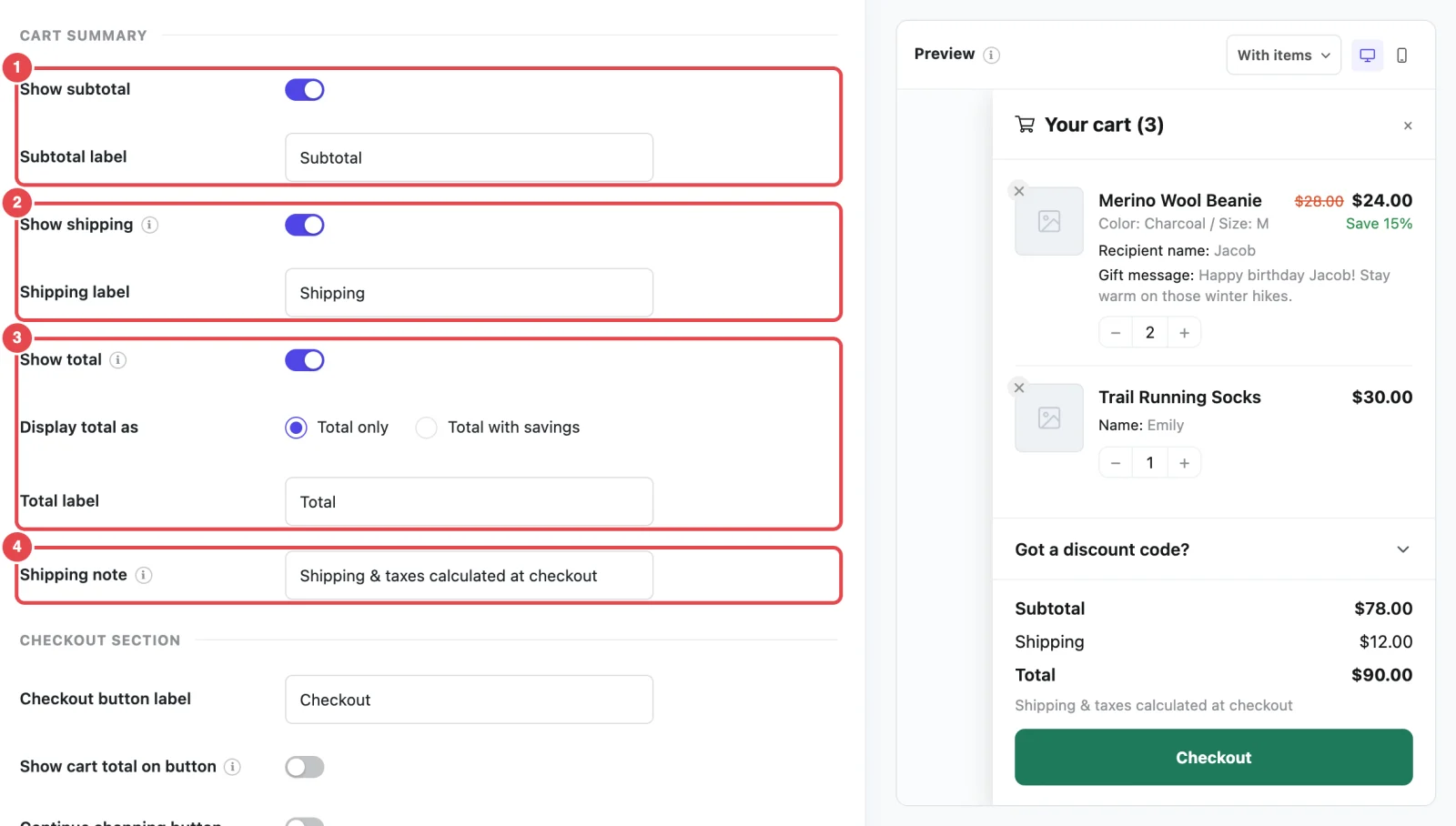
At a glance
| Setting | What it does | Default |
|---|---|---|
| Show subtotal | Shows the total of the items, before shipping and coupon discounts | On |
| Subtotal label | The subtotal's name. Appears when Show subtotal is on. | Subtotal |
| Show shipping | Shows the shipping cost, once shipping applies to the cart | Off |
| Shipping label | The shipping line's name. Appears when Show shipping is on. | Shipping |
| Show total | Shows the order's grand total | Off |
| Display total as | Just the total, or the total with the pre-discount amount crossed out. Appears when Show total is on. | Total only |
| Total label | The total's name. Appears when Show total is on. | Total |
| Shipping note | A short line of text under the totals. Leave it empty to hide it. | Shipping & taxes calculated at checkout |
What the summary looks like
The ShapedCart cart summary sits between the coupon field and the checkout button. From top to bottom, a cart with everything switched on shows:
| Row | Example | Shown when |
|---|---|---|
| Subtotal | Subtotal ··· $80.00 | Show subtotal is on |
| Coupon | Coupon SAVE10 × ··· − $8.00 | A coupon is applied. This row always shows, whatever your settings. |
| Shipping | Shipping ··· $5.00 | Show shipping is on and shipping applies |
| Total | Total ··· $77.00 | Show total is on |
| Note | Shipping & taxes calculated at checkout | The note isn't empty |
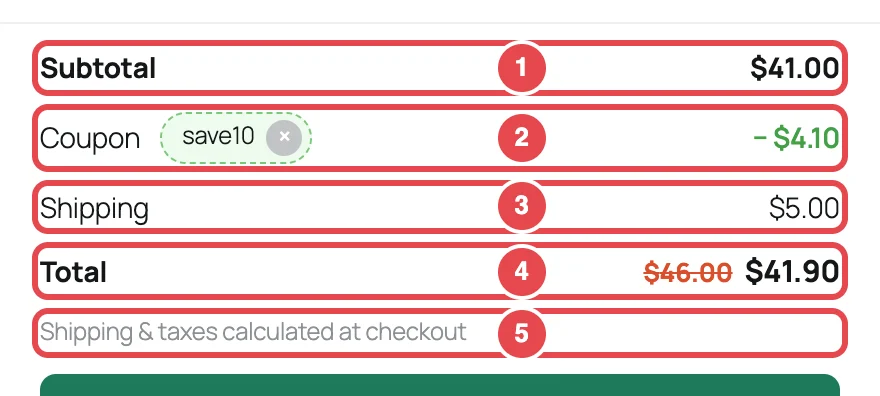
Every row updates as soon as the shopper changes a quantity, removes an item or applies a coupon, without reloading the page. The whole summary is hidden while the cart is empty.
Subtotal
ShapedCart's Show subtotal setting shows the total price of everything in the cart, before shipping and coupon discounts. It's on by default. Most shoppers look for it, so it's worth keeping.
Change Subtotal label to rename it, for example to Items or Order subtotal.
Shipping
ShapedCart's Show shipping setting adds a shipping line that shows the shipping cost WooCommerce has calculated for the cart, or Free! when shipping is free. It's off by default.
The shipping line only appears once shipping actually applies to the cart:
- WooCommerce shipping is set up. You have at least one shipping zone with a shipping method, in WooCommerce → Settings → Shipping.
- Something in the cart needs shipping. A cart of only virtual or downloadable products has no shipping line.
- WooCommerce is allowed to show a cost before checkout. If Hide shipping costs until an address is entered is ticked in your shipping settings, the line stays hidden until the shopper has entered an address, usually at checkout.
The shipping cost is an estimate until checkout
The side cart doesn't ask for an address, so WooCommerce works out shipping from what it already knows. That's usually your store's default customer location, or the shopper's location if you use geolocation. The real cost can change once the shopper enters their address at checkout. If your rates vary a lot by location, you may prefer to leave this off and use the shipping note instead.
Change Shipping label to rename the line, for example to Delivery or Estimated shipping.
Total
ShapedCart's Show total setting shows the order's grand total: the subtotal, minus any coupon discount, plus shipping and taxes, the same total WooCommerce shows at checkout. It's off by default.
Once it's on, Display total as gives you two options:
| Option | What shoppers see |
|---|---|
| Total only | Just the total, such as $77.00. |
| Total with savings | When a coupon is applied, the total before the discount is crossed out next to the real total, such as |
Total with savings only counts coupon discounts. Sale-price savings are already shown on each item by Show savings.
Change Total label to rename it, for example to Order total or Estimated total.
Showing the total? Check your note too
If Show total is on, a note that says Shipping & taxes calculated at checkout can make shoppers wonder whether the total is final. Try something like Final total confirmed at checkout instead.
Shipping note
ShapedCart's Shipping note is a short line of small text under the totals. It's there to set expectations before checkout. It defaults to Shipping & taxes calculated at checkout, because the side cart doesn't have the shopper's address and can't show the final cost.
You can use it for any short message, for example:
- Free shipping on orders over $50
- Ships within 1–2 business days
- Taxes and shipping calculated at checkout
To hide the note, clear the field and save.
Want it in more than one language?
The labels and note are saved exactly as you type them, so they show the same text in every language. See Translation.
Related
- Coupon Field: the previous section, and where coupon discounts come from
- Checkout Buttons: the next section, including showing the total on the checkout button
- Cart Items: savings shown on each product