

Opening & Heading
Choose where the cart appears, what its header says, and whether it opens by itself when a shopper adds a product.
These settings are at ShapedCart → Side Cart → 1 Side cart → General → Basic Settings, the first section on the tab.
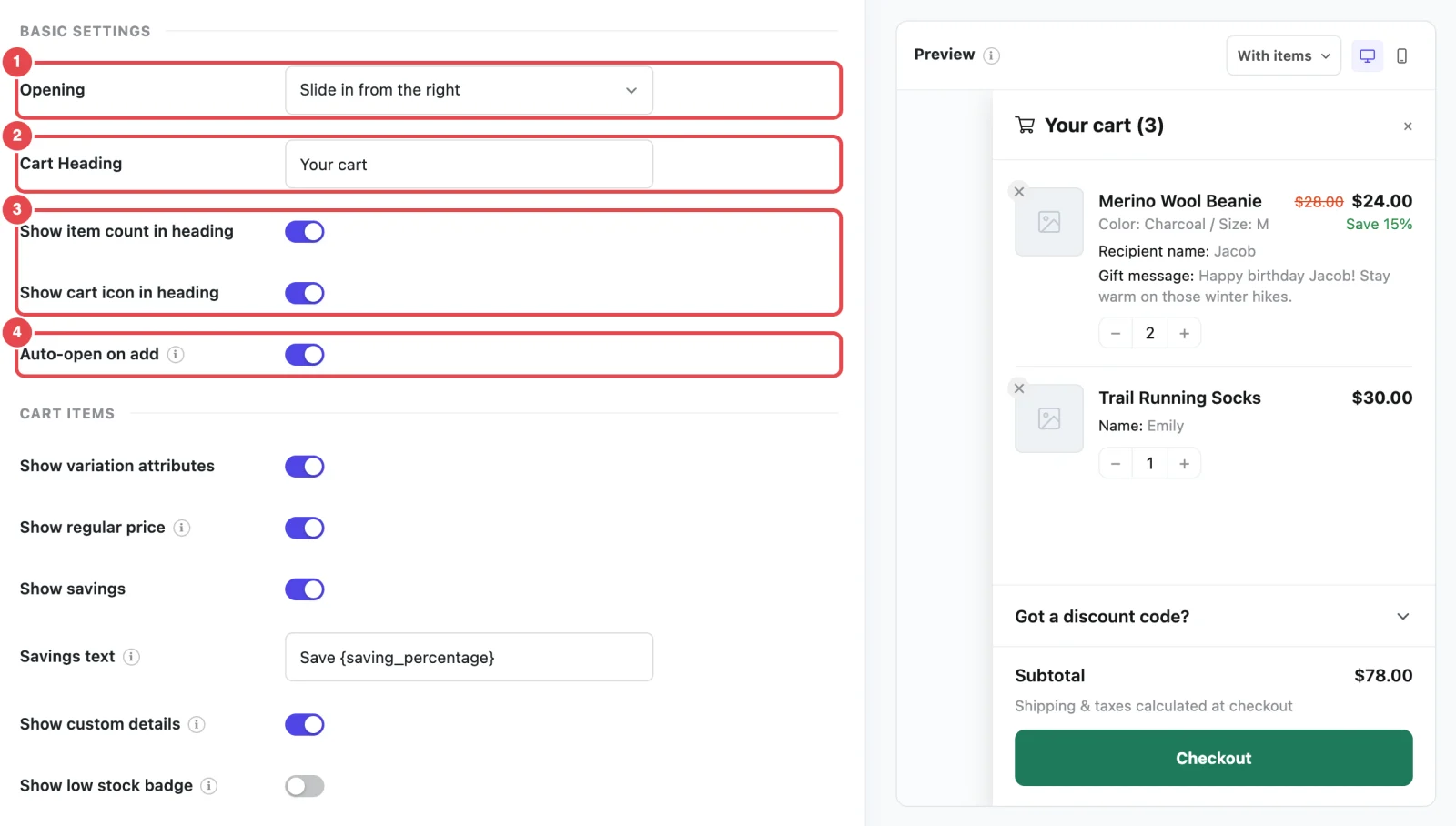
At a glance
| Setting | What it does | Default |
|---|---|---|
| Opening | Where the cart appears: sliding in from the right or left, or as a popup in the middle of the screen | Slide in from the right |
| Cart Heading | The title at the top of the cart | Your cart |
| Show item count in heading | Adds the number of items after the heading, like Your cart (3) | On |
| Show cart icon in heading | Shows a cart icon before the heading | On |
| Auto-open on add | Opens the cart every time a shopper adds a product | On |
Opening
ShapedCart's Opening setting decides where the side cart appears: sliding in from the right, sliding in from the left, or as a popup in the center of the screen. Pick the one that suits your store:
| Option | What shoppers see | Good for |
|---|---|---|
| Slide in from the right | The cart slides in against the right edge, full height, and the page dims behind it. | Most stores. It's where shoppers expect a cart to be. |
| Slide in from the left | The same panel, sliding in from the left edge. | Stores whose header cart icon sits on the left, or right-to-left language sites. |
| Centre modal | The cart opens as a popup in the middle of the screen, with rounded corners. | Keeping the shopper's full attention on the cart, or stores whose carts usually hold only one or two items. |
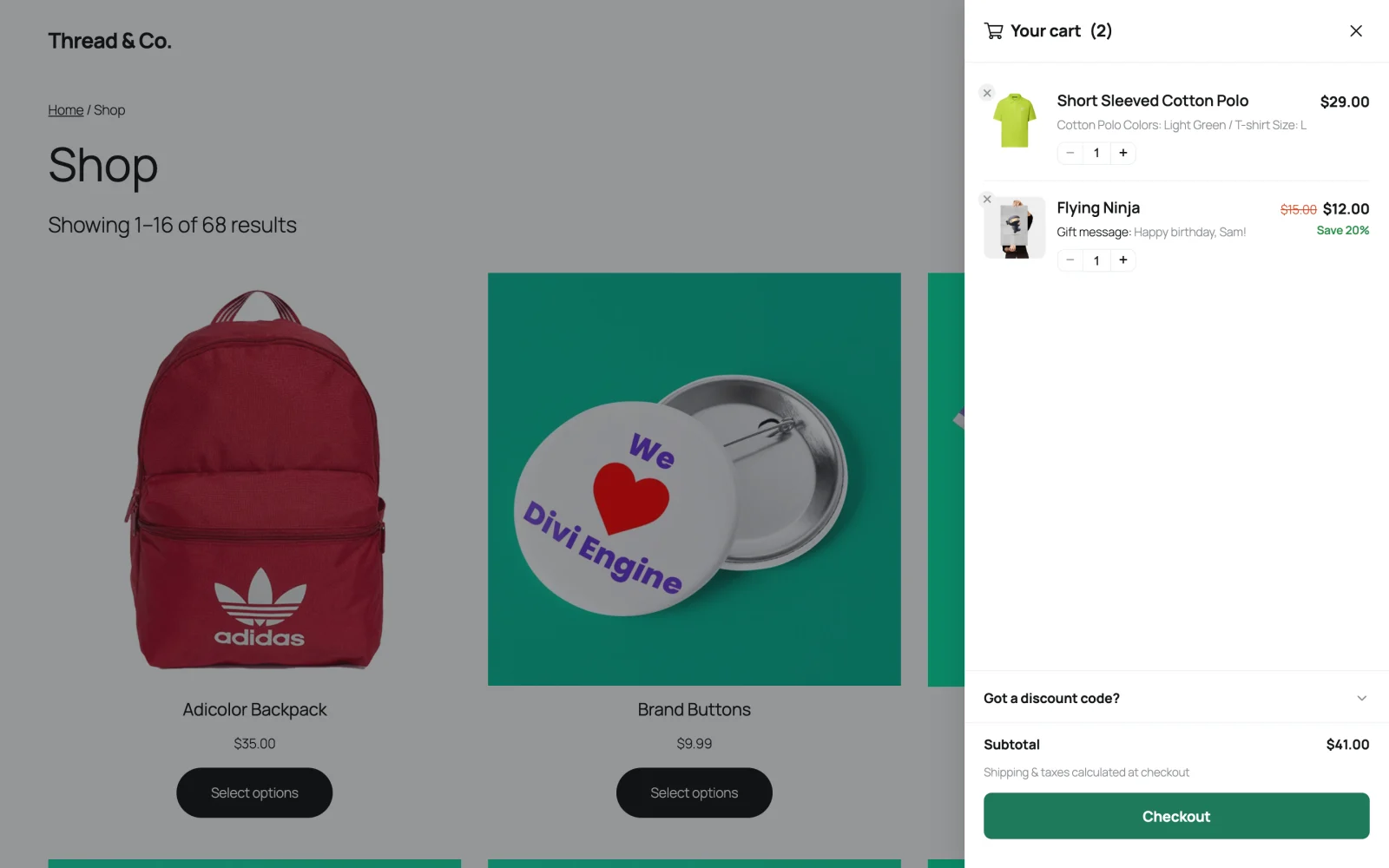
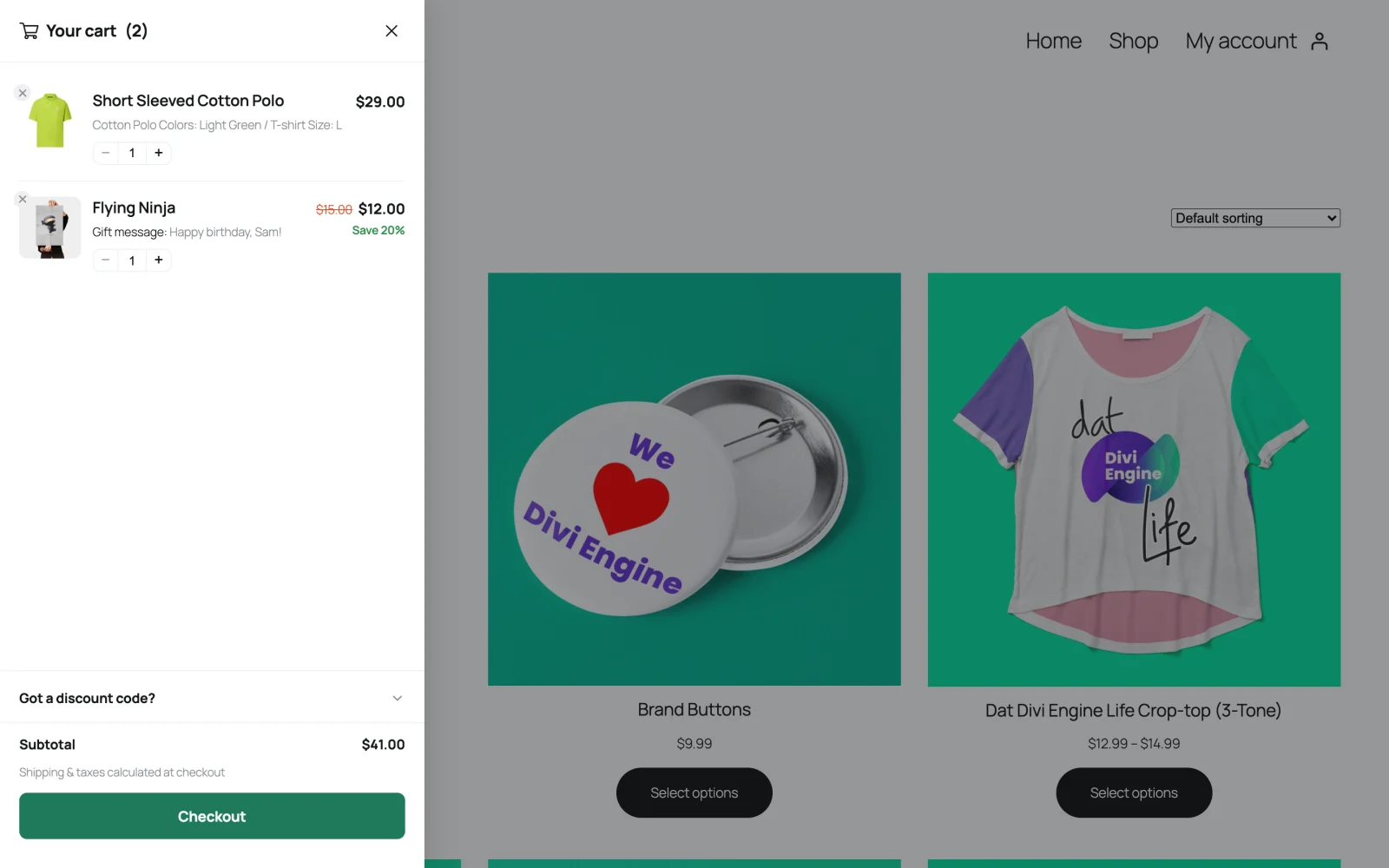
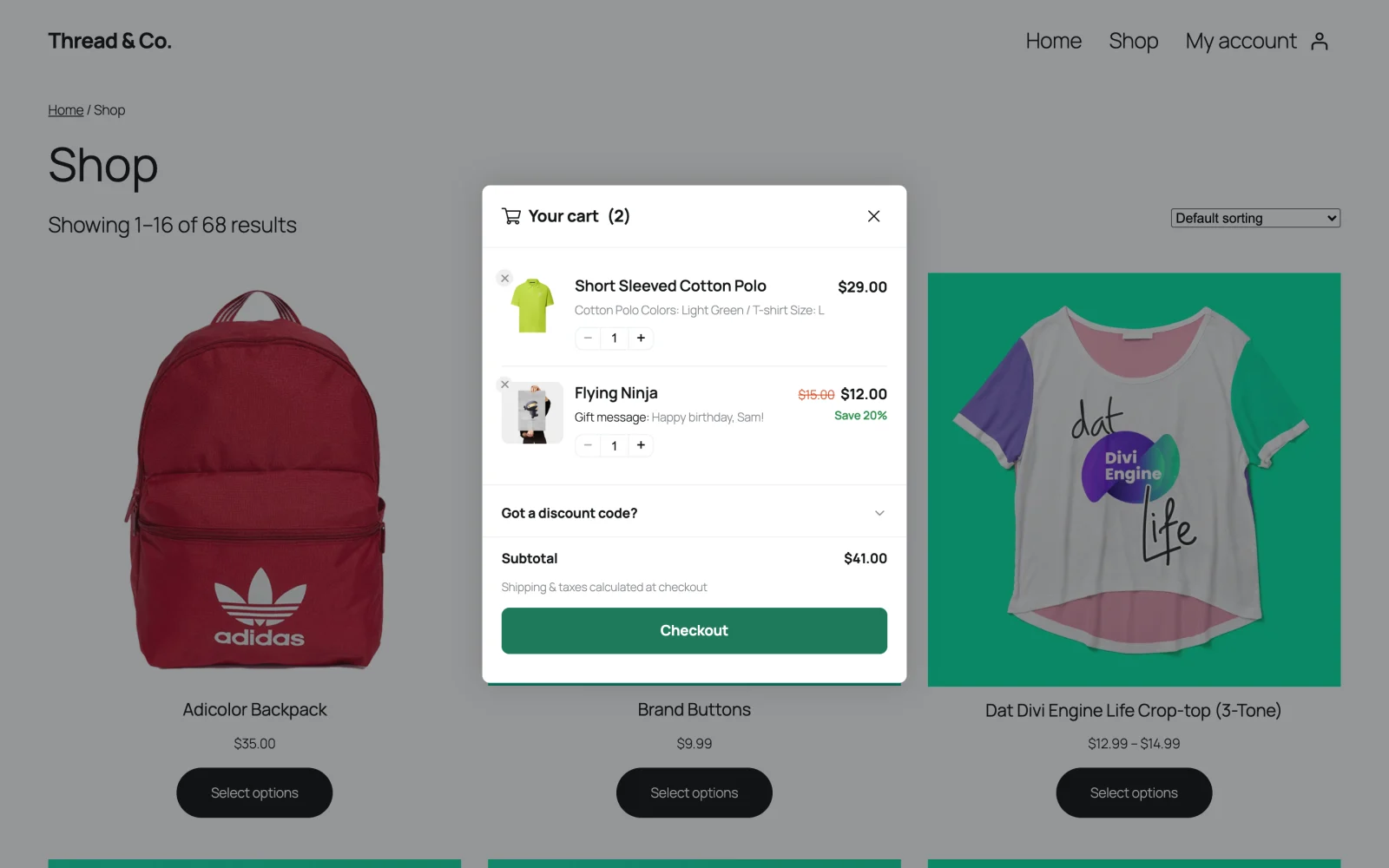
A few details worth knowing:
- Width. All three options use the widths you set on the Style tab, one each for desktop, tablet and mobile. The cart is never wider than the screen, so on a narrow phone it fills the width. See Cart Width.
- Height. The side options run the full height of the screen. The center popup is only as tall as its content, up to 85% of the screen height. If the cart holds more than that, the items scroll inside it.
- Rounded corners. The center popup takes its corner rounding from the Corner radius setting. The side options sit flush against the edge of the screen.
Match it to your floating cart
If you've moved the floating cart to the left side of the screen, try Slide in from the left too. Then the cart opens from the same side the shopper tapped.
Cart Heading
ShapedCart's Cart Heading setting is the title at the top of the side cart. It defaults to Your cart. Change it to anything that fits your store's voice, such as Your bag, Your basket, or Shopping cart.
Screen readers read this heading out when the cart opens, to tell people what just appeared. So keep it short and don't leave it blank.
Want it in more than one language?
The heading is saved exactly as you type it, so it shows the same text in every language. See Translation for options on multilingual stores.
Item count and icon
Two ShapedCart switches control what sits around the cart heading:
- Show item count in heading adds the number of items in brackets, like Your cart (3). It counts every unit, so two T-shirts and one hat show as (3), not (2). It updates as soon as a shopper changes a quantity.
- Show cart icon in heading puts a small cart icon in front of the heading. You choose which icon on the Style tab, under Cart icon. That setting only appears while this switch is on.
The close button (×) is always in the header, so shoppers can always get out.
Auto-open on add
With ShapedCart's Auto-open on add switched on, the side cart opens by itself every time a shopper adds a product. It doesn't matter whether they add from your shop page, a product page, or a product block. The cart opens with the new item already in it, so the shopper can see straight away that the add worked, and the checkout button is right in front of them.
Switch it off if you'd rather keep shoppers browsing. The cart then updates quietly in the background: the item count on the floating cart and menu cart goes up, and shoppers open the cart themselves when they're ready.
Using "Redirect to the cart page"?
If WooCommerce is set to send shoppers to the cart page after they add a product, they'll leave the page before the cart can open. Turn that option off in WooCommerce → Settings → Products to use auto-open. Auto-Open on Add to Cart explains this and the other WooCommerce settings that affect it.
Related
- Auto-Open on Add to Cart: how it works with each kind of add-to-cart button
- Layout & Colors: width, corner radius and the heading icon
- Cart Items: the next section on the General tab