

Cart Items
Decide what shoppers see under each product in the side cart: the options they picked, what they're saving, add-on details, and when stock is running low.
ShapedCart's Cart Items settings control the extra details shown for each product in the WooCommerce side cart. You'll find them at ShapedCart → Side Cart → 1 Side cart → General → Cart Items, the second section on the tab.
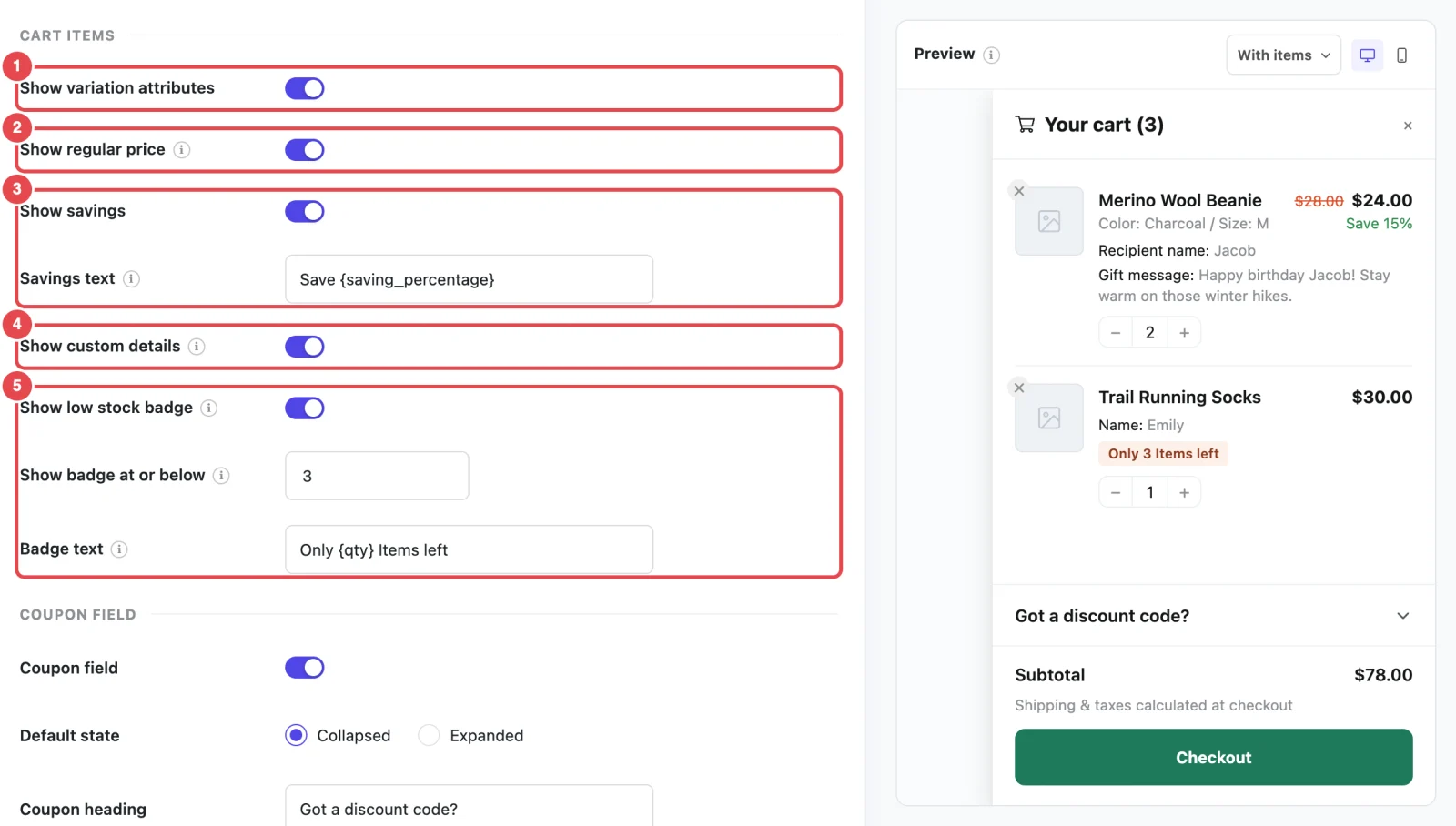
At a glance
| Setting | What it does | Default |
|---|---|---|
| Show variation attributes | Shows the options a shopper picked, like Color: Black / Size: M | On |
| Show regular price | Shows the original price crossed out next to the sale price | On |
| Show savings | Adds a badge showing how much the shopper saves on a sale item | On |
| Savings text | The wording of that badge. Appears when Show savings is on. | Save |
| Show custom details | Shows extra details added by product add-on plugins, like a gift message or an engraving | On |
| Show low stock badge | Adds a badge when a product is running low | Off |
| Show badge at or below | The stock level at which the badge appears. Appears when Show low stock badge is on. | 3 |
| Badge text | The wording of the low stock badge. Appears when Show low stock badge is on. | Only {qty} Items left |
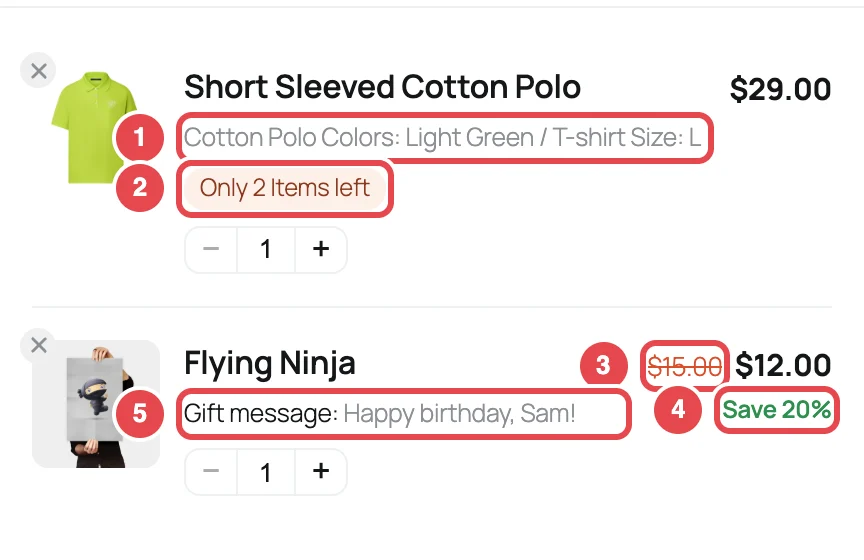
What every item always shows
Every product in the ShapedCart side cart always has a few basics, whatever your settings:
- The product image, with a small × in its corner that removes the item.
- The product name, which links to the product page.
- The price for that line, which is the unit price times the quantity.
- A quantity stepper, with − and + buttons and a box shoppers can type a number into. The lowest quantity is 1. To take an item out, shoppers use the × on the image.
The settings below add details on top of these.
Show variation attributes
ShapedCart's Show variation attributes setting lists the options a shopper chose for a variable product, right under its name. For example, a hoodie bought in black, size medium shows:
Hoodie Color: Black / Size: M
Each option is shown as Name: Value, with a slash between them. The product name stays clean (Hoodie, not Hoodie - Black, M), because the options are listed underneath instead.
This only affects variable products, the ones where shoppers pick options before adding to cart. Simple products don't have options, so nothing changes for them.
Keep this on if you sell variable products
Without it, two sizes of the same hoodie look identical in the cart. Shoppers can't tell which is which, and they're more likely to remove the wrong one.
Show regular price
ShapedCart's Show regular price setting shows a sale item's original price crossed out, next to the price the shopper is paying. For example, a $50 jacket on sale for $40 shows $50.00 $40.00.
It only appears on products that are on sale in WooCommerce, meaning they have a sale price set. Like the main price, it's the price for the whole line, so two of those jackets show $100.00 $80.00.
You can change the color of the crossed-out price on the Style tab, with the Regular price color. That color setting only shows while this switch is on. See Colors.
Show savings
ShapedCart's Show savings setting adds a small badge under the price of each sale item, telling shoppers how much they're saving. By default it reads Save 20%, or whatever the discount works out to.
You control the wording with Savings text, which appears once Show savings is on. Type any text you like and use one of these two placeholders where the number should go. ShapedCart swaps in the real value for each item:
| Placeholder | Becomes | Example text | Shoppers see |
|---|---|---|---|
{saving_percentage} | The discount as a percentage, rounded to a whole number | Save {saving_percentage} | Save 20% |
{saving_amount} | The money saved on that line, in your store's currency | You save {saving_amount} | You save $20.00 |
{saving_amount} is the saving for the whole line. If a shopper has two jackets that are each $10 off, it shows $20.00. The percentage stays the same however many they buy.
Savings come from sale prices, not coupons
The badge is based on the product's regular and sale prices in WooCommerce. A coupon discount isn't included, because coupons apply to the whole order. Coupon discounts show in the cart summary instead.
You can change the badge's color on the Style tab, with the Savings text color. See Colors.
Show custom details
ShapedCart's Show custom details setting shows the extra information a shopper entered or chose when adding a product, under the product name. That covers things like:
- a name or message for personalization or engraving
- a gift message or gift-wrap choice
- extra options from a product add-on or product fields plugin
Each detail shows as Label: Value on its own line. For example, Engraving: Emily.
These details come from other plugins, not from ShapedCart. ShapedCart shows whatever those plugins add to the cart, the same way the WooCommerce Cart block does. So if a detail shows on your WooCommerce cart page, it shows in the side cart too. Some add-on plugins only send their details to the cart page itself, and ShapedCart picks those up as well.
Any links, bold or italic text an add-on includes are kept. Anything the add-on marks as hidden stays hidden.
Don't use an add-on plugin?
Leaving this on does no harm, because nothing shows unless a product actually has extra details. Turn it off if an add-on shows details you'd rather keep out of the side cart. Compatibility has more about add-on plugins.
Show low stock badge
ShapedCart's Show low stock badge setting adds a badge like Only 3 Items left under a product that's running low. It's off by default. Turn it on to give shoppers a gentle nudge to check out before an item sells out.
Once it's on, two more settings appear:
| Setting | What it does | Default |
|---|---|---|
| Show badge at or below | The badge appears once a product's stock drops to this number or lower. Any whole number from 1 to 1000. | 3 |
| Badge text | The badge's wording. Use {qty} where the number of items left should go. | Only {qty} Items left |
So with the defaults, a product with 3, 2 or 1 in stock shows the badge, and a product with 4 or more doesn't.
The default text reads Only 3 Items left. You might prefer something shorter, like Only {qty} left or Just {qty} in stock.
A few things decide whether the badge can show:
- The product has to track stock. In the product's Inventory tab in WooCommerce, Track stock quantity for this product must be ticked and a stock number set. For a variable product, you can set this on each variation. Products that don't track stock never show the badge.
- Out-of-stock products don't show it. The badge is for items that are running low, not ones that are gone.
- It uses your store's stock level. The number is how many are left in your store, not how many are left after the shopper's cart. If you have 3 left and the shopper has 2 in their cart, the badge still says 3.
- It shows when the page loads. The badge appears when a page loads with the cart already filled in, and after an add from a single product page, which reloads the page. When a shopper changes the cart without a reload, for example a quantity, a removal, a coupon or an add from a shop page, the item list is redrawn without the badge. It comes back on the next page load.
Keep it honest
Only use the badge if your stock numbers are accurate. An "Only 2 left" message that never changes teaches shoppers to ignore it.
Related
- Opening & Heading: the previous section
- Coupon Field: the next section
- Layout & Colors: colors for the crossed-out price and savings badge
- Compatibility: product add-on plugins