

Admin Screen Tour
All ShapedCart settings live on one screen. Here's how it's laid out, so you always know where to look.
To open it, click ShapedCart in the left-hand admin menu. If you can't see that menu item, check who can change the settings.
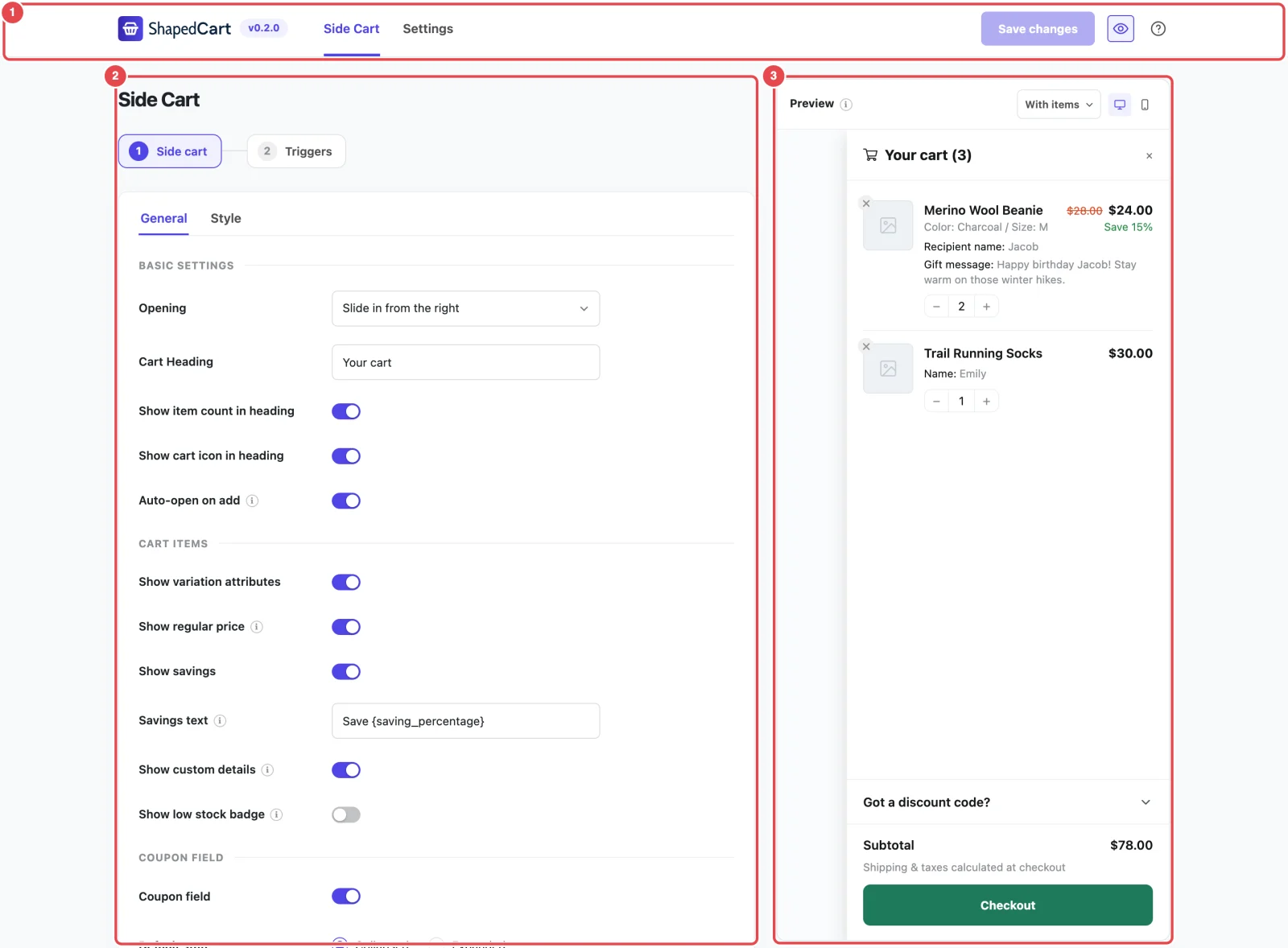
The screen has three areas: a header along the top, the settings on the left, and a live preview on the right.
The header
The ShapedCart header stays at the top of the settings screen. From left to right:
| Item | What it does |
|---|---|
| Logo and version | The small badge next to the logo is the ShapedCart version you're running, such as v0.2.0. Worth knowing when you contact support. |
| Side Cart and Settings | The two tabs. Side Cart is where you set up the cart and its triggers. Settings holds the plugin-wide switches. |
| Save changes | Saves everything you've changed on both tabs. It stays greyed out until you change something. |
| Eye icon | Shows or hides the live preview. It only appears on the Side Cart tab. |
| ? icon | Opens a small help menu with links to Documentation and Support. |

The Side Cart tab
The ShapedCart Side Cart tab is where you set up the cart and the ways shoppers open it. It's split into two numbered steps, shown as buttons at the top of the settings column. You can click either one at any time. You don't have to finish step 1 before looking at step 2.
Step 1: Side cart
Everything about the cart panel itself, in one card with two tabs:
- General covers what the cart says and does. It has six sections, one after the other: Basic Settings, Cart Items, Coupon Field, Cart Summary, Checkout Section and Empty State.
- Style covers how it looks: Layout (width, corner radius, cart icon) and Colors.
Each section has its own page in these docs:
| Section | Docs page |
|---|---|
| General → Basic Settings | Opening & Heading |
| General → Cart Items | Cart Items |
| General → Coupon Field | Coupon Field |
| General → Cart Summary | Cart Summary |
| General → Checkout Section | Checkout Buttons |
| General → Empty State | Empty State |
| Style → Layout and Colors | Layout & Colors |
Step 2: Triggers
A trigger is something a shopper clicks to open the cart. This step has two cards:
- Floating Cart: the cart button pinned to a corner of the screen.
- Menu Cart: the cart icon in your navigation menu, plus its shortcode.
Each card has an on/off switch in its top-right corner. When a card is switched off, its settings are hidden. Switch it on to see them. Both cards also have their own General and Style tabs.
The Settings tab
The ShapedCart Settings tab holds three plugin-wide controls:
- Enable ShapedCart turns the whole plugin off or on without losing your settings.
- Delete Data on Uninstall decides whether your settings are removed when you delete the plugin.
- Reset All Settings puts every setting back to its default.
The live preview is hidden on this tab, because none of these settings change how the cart looks. Plugin Settings explains each one.
Finding your way around the settings
A few things work the same way everywhere on the ShapedCart settings screen:
- The ⓘ icon next to a setting's name explains what it does. Hover over it, or tab to it with your keyboard, to read it.
- Some settings only appear when you need them. For example, Savings text only shows once Show savings is on, and Custom URL only appears when you pick Custom URL as the continue shopping behavior. If the docs mention a setting you can't find, check whether the toggle above it is on.
- Size fields have a unit picker. Next to fields such as Cart Width or the floating cart's Size you can choose the unit:
pxfor exact sizes,%for a share of the screen, orem/remto scale with your text size. The options depend on the field. - Cart Width has separate values for each device. Use the small desktop, tablet and mobile icons beside the setting to switch between them.
- Warnings appear under a setting when a value might cause trouble. For example, you'll see one if you make the floating cart smaller than a comfortable tap target on phones.
Live preview
The ShapedCart Preview pane shows what your cart will look like as you change settings, before you save. It updates straight away, so you can try a color or switch a section off and see the result immediately.
What the preview shows depends on the step you're on:
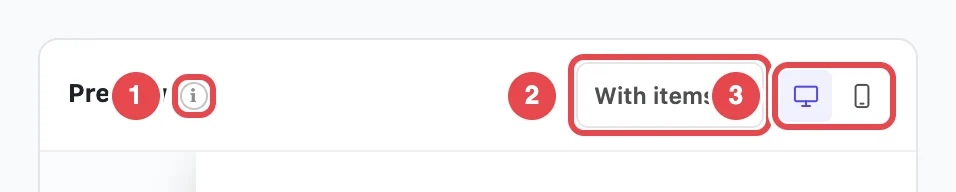
- On step 1 (Side cart), it shows the cart panel. Use the dropdown at the top of the pane to switch between With items and Empty, so you can check the empty state without emptying a real cart. If you've chosen Centre modal, the preview shows the cart in the middle instead of against the edge.
- On step 2 (Triggers), it shows the floating cart and the menu cart. If one is switched off, it's marked Turned off.
The desktop and mobile icons at the top of the pane change the preview's width, so you can see how the cart fits on a phone.
The preview is a close match, not your live store
The preview uses sample products and the admin's own fonts. The ⓘ next to Preview says it plainly: "A representation of the cart, not your live theme. Open your shop with a test cart to confirm the real thing." Once you've saved, open your store in another tab, add a product, and check the real cart.
On screens narrower than about 1200px, the preview moves below the settings instead of beside them. Click the eye icon in the header if you'd rather hide it.
Saving your changes
ShapedCart doesn't apply any change to your store until you click Save changes in the header.
- One button saves everything. Changes on both steps and on the Settings tab are all saved together. You can move between tabs and steps without losing unsaved changes.
- A confirmation appears at the bottom of the screen: Settings saved. Your store uses the new settings from the next page load.
- If a value isn't valid, you'll see One or more settings values are invalid. instead, and nothing is saved, including your other changes. The usual cause is a color typed by hand that isn't a proper hex code, such as
#1f7a5with a digit missing. Fix it and save again. - If the save doesn't go through at all, for example because you've been logged out or lost your connection, you'll see an error message. Reload the page (your browser will warn you about unsaved changes) and try again.
- Leaving with unsaved changes? Your browser warns you before you close the tab or go to another admin page, so you won't lose work by accident.
Changes not showing on your store?
If you've saved but your store still shows the old cart, a caching plugin or your host's cache is probably serving an older copy of the page. Clear the cache and reload. Troubleshooting covers this in more detail.
Related
- Side Cart Overview: what each part of the cart is called
- Plugin Settings
- Quick Start