Empty State
Give shoppers somewhere to go when their cart is empty, instead of a blank panel.
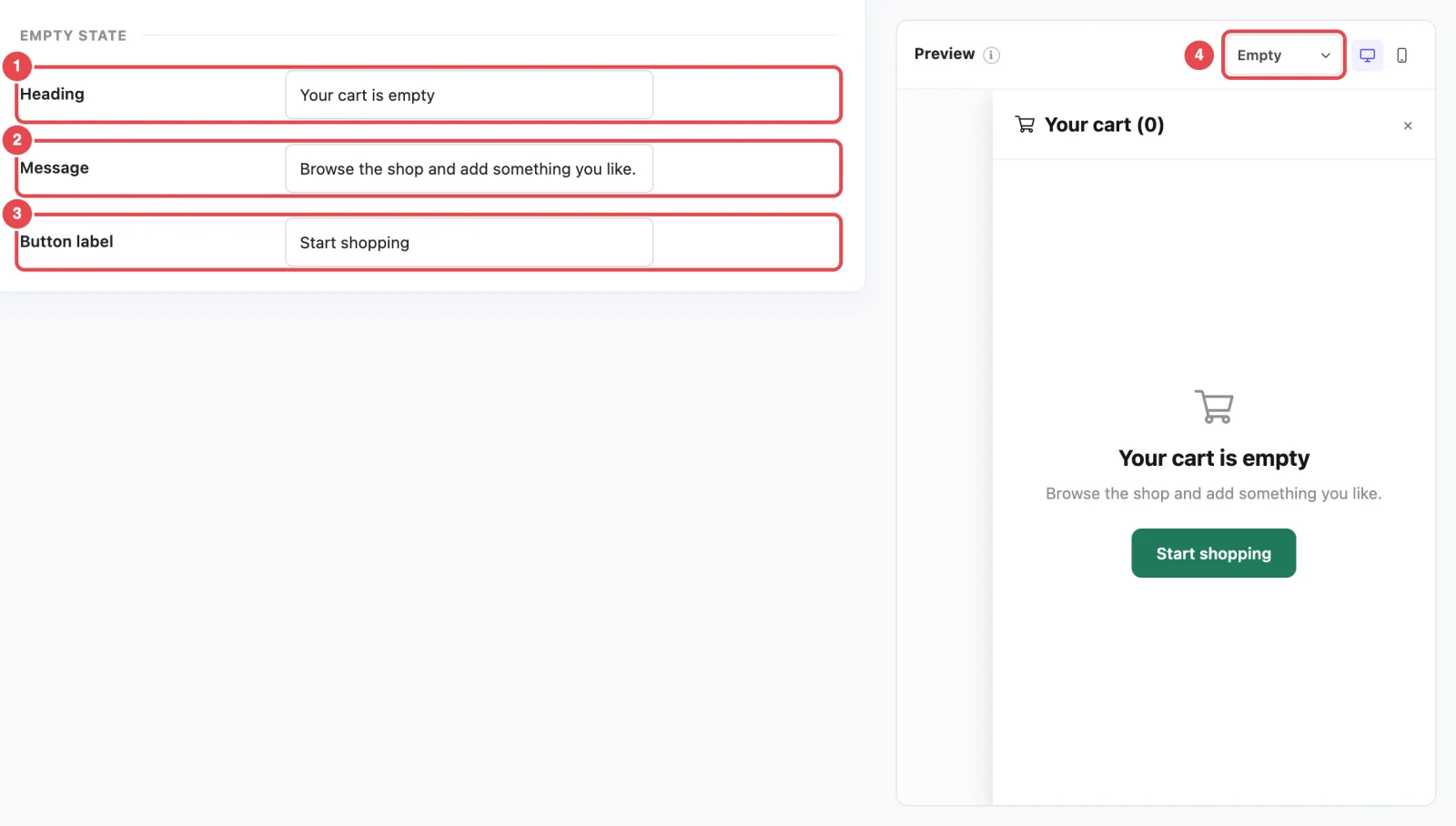
ShapedCart's Empty State settings control what shoppers see when they open the WooCommerce side cart with nothing in it. You'll find them at ShapedCart → Side Cart → 1 Side cart → General → Empty State, the last section on the tab.
At a glance
| Setting | What it does | Default |
|---|---|---|
| Heading | The main line of the empty cart message | Your cart is empty |
| Message | A short line of text under the heading | Browse the shop and add something you like. |
| Button label | The text on the button that takes shoppers to your shop | Start shopping |
What shoppers see
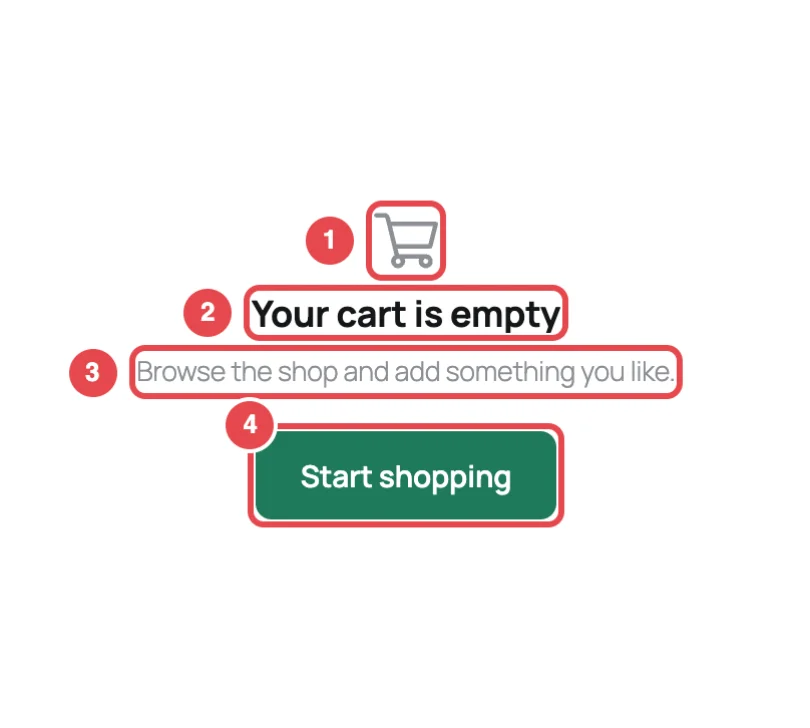
When the cart is empty, the ShapedCart side cart replaces the item list, coupon field, totals and checkout button with a short, friendly message. From top to bottom:
- A large cart icon. It's the same icon you picked for the cart heading, under Cart icon on the Style tab. It shows here even if the heading icon is switched off.
- The heading, such as Your cart is empty.
- The message, such as Browse the shop and add something you like.
- A button in your accent color, such as Start shopping, which takes shoppers to your WooCommerce Shop page.
The cart's header, with its heading and close button, stays at the top as usual.
The empty state appears straight away when a shopper removes the last item from their cart. There's no reload, and they can head back to the shop from there.
Where the button goes
The button always goes to the page set as your Shop page in WooCommerce → Settings → Products. If no Shop page is set, it goes to your home page. To send shoppers somewhere else, like a sale or a best-sellers page, change which page WooCommerce uses as the Shop page.
Write a better empty state
An empty cart often means a shopper removed something, or opened the cart to check what they'd saved. The ShapedCart empty state is your chance to point them somewhere useful. A few ideas:
| Style | Heading | Message | Button label |
|---|---|---|---|
| Friendly (default) | Your cart is empty | Browse the shop and add something you like. | Start shopping |
| Promotional | Nothing here yet | New arrivals just landed, and shipping is free over $50. | See what's new |
| Short | Your bag is empty | Shop now | |
| Gift shop | Looking for the perfect gift? | Our best-sellers are a good place to start. | Browse gifts |
Keep the message to one sentence, because the cart panel is narrow, especially on phones. Make the button label say what happens when you click it, rather than a vague Click here.
Match the rest of the cart
If you renamed the cart heading, for example to Your bag, use the same word here (Your bag is empty), so the wording feels consistent.
Preview the empty cart
You don't need to empty a real cart to check your wording. In the ShapedCart settings screen, switch the dropdown at the top of the Preview pane from With items to Empty. The preview then shows the empty state, and it updates as you type. See Live preview.
When you're happy with it, click Save changes. Then open your store in a private browser window, which starts with an empty cart, and open the cart to see the real thing.
Related
- Checkout Buttons: the previous section
- Layout & Colors: the empty state's icon and button color
- Floating Cart: hide the floating cart while the cart is empty