

Coupon Field
Let shoppers apply a discount code without leaving the page they're on.
ShapedCart's Coupon Field settings add a coupon code box to the WooCommerce side cart, so shoppers can apply a discount before they reach checkout. You'll find them at ShapedCart → Side Cart → 1 Side cart → General → Coupon Field, the third section on the tab.
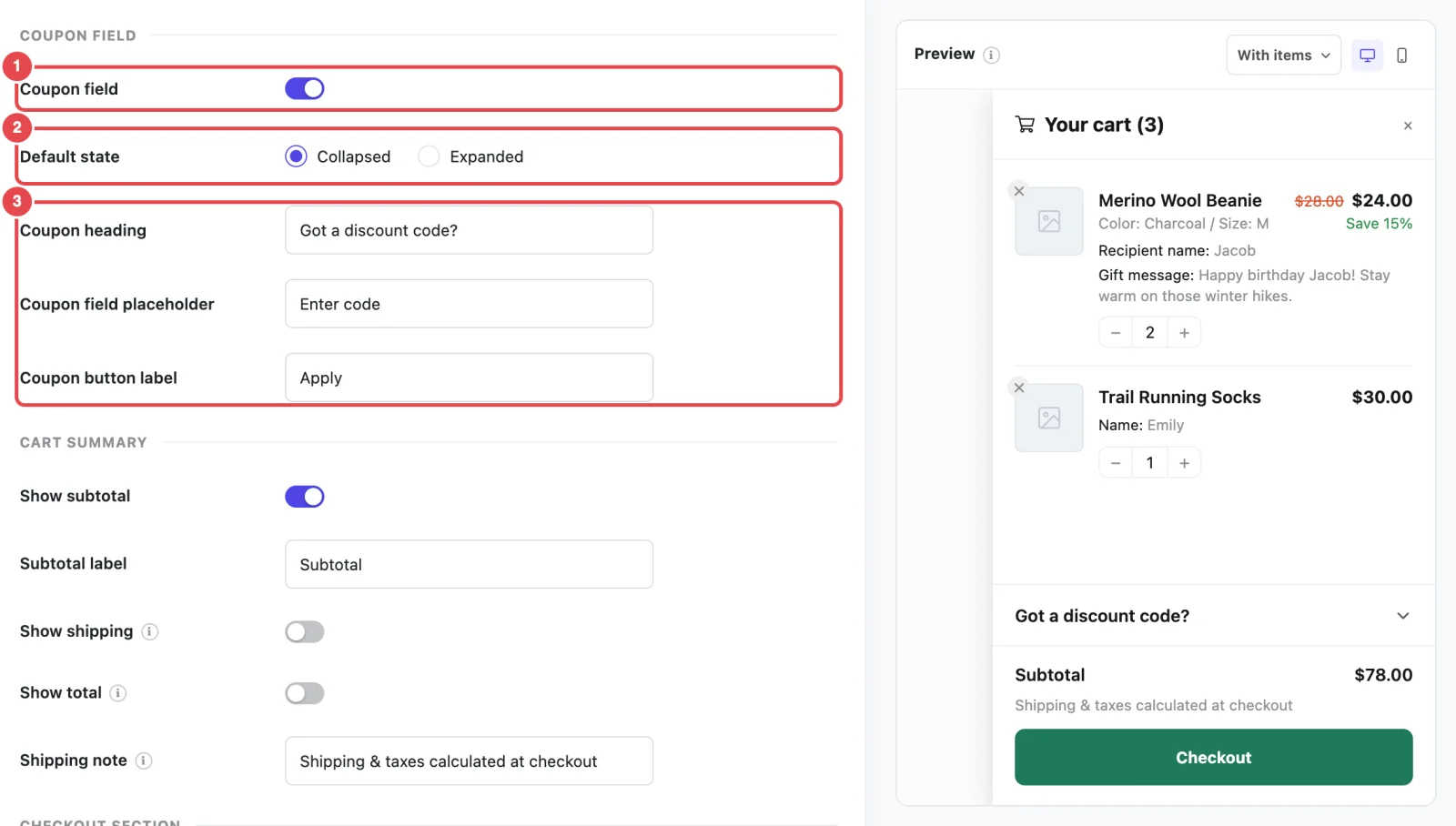
At a glance
| Setting | What it does | Default |
|---|---|---|
| Coupon field | Shows or hides the coupon code box in the cart | On |
| Default state | Whether the code box starts hidden behind a link, or open. Appears when Coupon field is on. | Collapsed |
| Coupon heading | The link text shoppers click to open the code box. Appears when Coupon field is on. | Got a discount code? |
| Coupon field placeholder | The grey hint text inside the empty code box. Appears when Coupon field is on. | Enter code |
| Coupon button label | The text on the button that applies the code. Appears when Coupon field is on. | Apply |
Before you start: coupons in WooCommerce
The ShapedCart coupon field applies coupons you've created in WooCommerce. It doesn't create them. Check two things:
- Coupons are turned on. Go to WooCommerce → Settings → General and make sure Enable coupons (Enable the use of coupon codes) is ticked. It's on by default.
- You have at least one coupon. Create coupons at Marketing → Coupons. That's where you set the discount, expiry date, minimum spend and usage limits.
Turned coupons off in WooCommerce? Turn the field off too.
ShapedCart shows the coupon field even when WooCommerce coupons are switched off. If a shopper tries a code, they'll just see Coupons are disabled. If your store doesn't use coupons, switch Coupon field off in ShapedCart so shoppers don't go looking for a code.
Turn the coupon field on or off
ShapedCart's Coupon field switch shows or hides the whole coupon box. It's on by default, and the other coupon settings only appear while it's on.
Whether to show it is up to you:
- Keep it on if you run promotions, send discount codes by email, or work with influencers. Shoppers who have a code can use it straight away, with no hunting around for where to enter it.
- Turn it off if you rarely offer codes. An empty coupon box can send shoppers off to search for a discount they don't have, and some never come back.
Applied coupons still show when the field is off
If a shopper already applied a coupon, on the cart page for example, it still appears in the cart summary with its discount and a × to remove it. That way the total always makes sense.
Default state
ShapedCart's Default state setting decides whether the coupon code box starts hidden or open when the cart opens:
| Option | What shoppers see | Good for |
|---|---|---|
| Collapsed | Just the Coupon heading, such as Got a discount code?, with a small arrow. Clicking it opens the code box and Apply button. | Most stores. The cart stays tidy, and shoppers with a code know where to look. |
| Expanded | The code box and Apply button, visible straight away. Shoppers can still click the heading to fold it away. | Stores running a big promotion, where most shoppers will have a code. |
Labels
ShapedCart has three coupon labels you can change to match your store's voice:
- Coupon heading is the clickable text above the code box. Try Have a promo code? or Add a discount code. Screen readers also use it as the name of the code box, so make sure it describes what the box is for.
- Coupon field placeholder is the hint inside the empty code box, like Enter code or e.g. SAVE10. It disappears as soon as the shopper starts typing.
- Coupon button label is the text on the button, like Apply or Redeem.
What shoppers see
Here's how a shopper uses the coupon field in the ShapedCart side cart:
- They click Got a discount code? to open the code box. With Expanded, it's already open.
- They type their code and click Apply.
- If the code works, a Coupon row appears in the summary, under the subtotal. It shows the code, a × to remove it, and the discount, such as − $5.00. All the totals update straight away, without reloading the page.
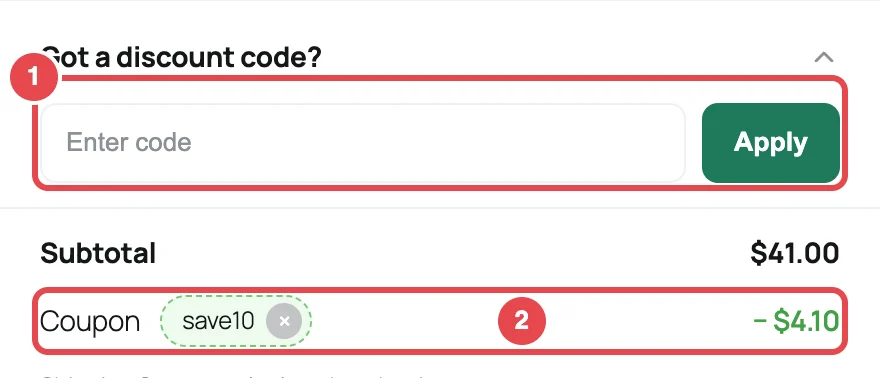
If a code doesn't work, WooCommerce's reason appears in red under the code box. For example, the code doesn't exist, it's expired, or the cart hasn't reached its minimum spend. The shopper can fix the code and try again.
Shoppers can apply more than one coupon if your coupons allow it. Each one gets its own row, and each can be removed with its ×. The coupon box, like the rest of the summary, is hidden while the cart is empty.
Test a code before you share it
Create the coupon, add something to the cart on your store, and apply the code in the side cart. You'll see exactly what your shoppers will see, including any "minimum spend" message.
Related
- Cart Items: the previous section
- Cart Summary: the next section, where the discount and totals show
- Side Cart Overview: where the coupon field sits in the cart